![Projul Logo 345PX wide.png]](https://5904352.hs-sites.com/hs-fs/hubfs/Projul%20Logo%20345PX%20wide.png?height=40&name=Projul%20Logo%20345PX%20wide.png)
Watch the video below to learn about QuickBooks Online, or keep reading for written instructions!

Contents
- Projul to QuickBooks Online Integration
- Data Type Sync Selections
- Sync Details by Data Type
- QuickBooks Online Additional Information
1. Projul to QuickBooks Online Integration
Step-by-step user instructions to connect a Projul account with QuickBooks Online.
- For the QuickBooks Desktop integration document, click here.
- Feel free to call our customer success team with any questions at 1-844-394-8541.
1.1 Log in to Projul
- Log in to Projul using the following link (app.projul.com). After successful login, you will be redirected to the Projul dashboard.
- If you don’t have a registered account on Projul, you can sign up here.
1.2 Go to the Integrations Page
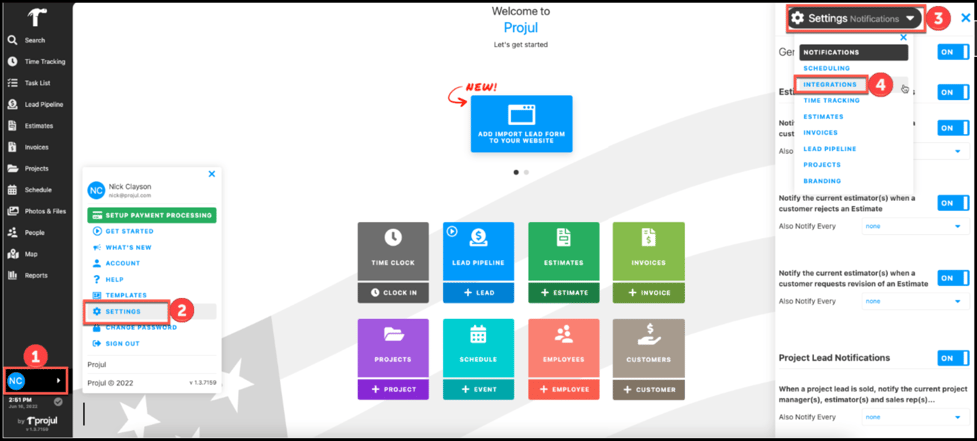
To get to the Integrations page:
- Click on account / initials.
- Click on settings.
- Click the settings dropdown menu on the sidebar.
- Select integrations.
1.3 Integration Options
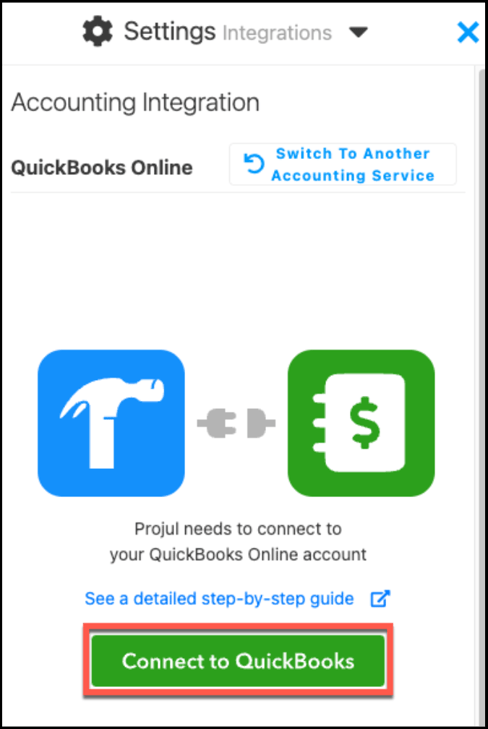
There are two integration options: QuickBooks Online and QuickBooks Desktop.
- Click on QuickBooks Online.

- Click on the Connect to QuickBooks button.
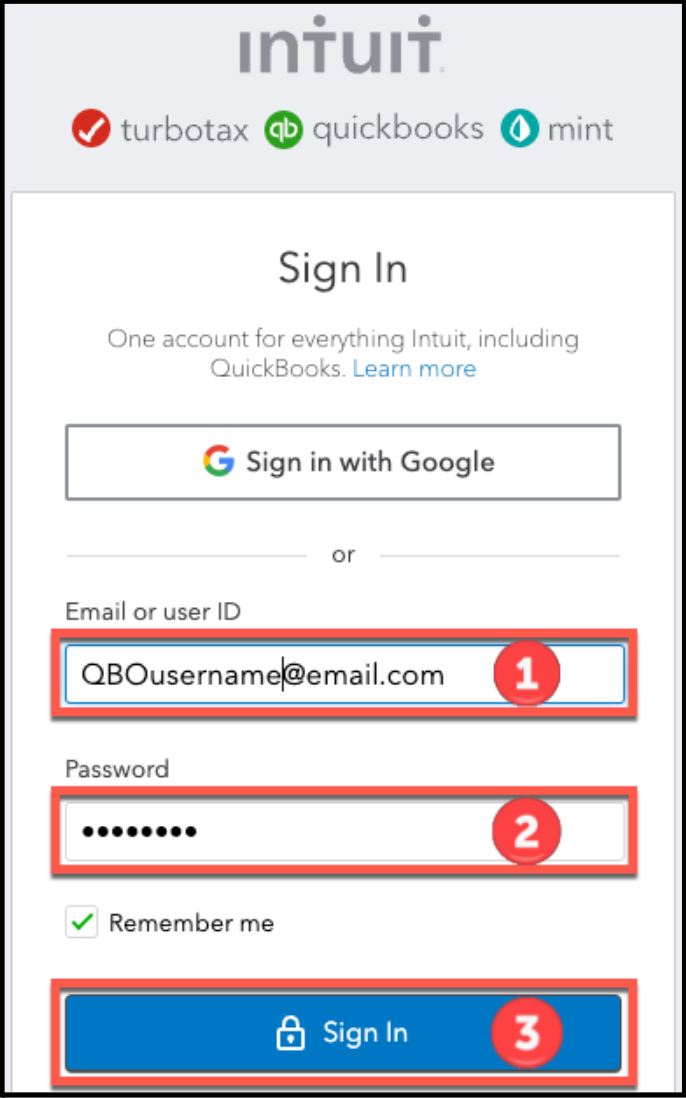
- Use Intuit credentials to log in to your QuickBooks Online account.
- Enter the QuickBooks Online email or user ID.
- Enter the QuickBooks Online password
- Click the Sign In button.
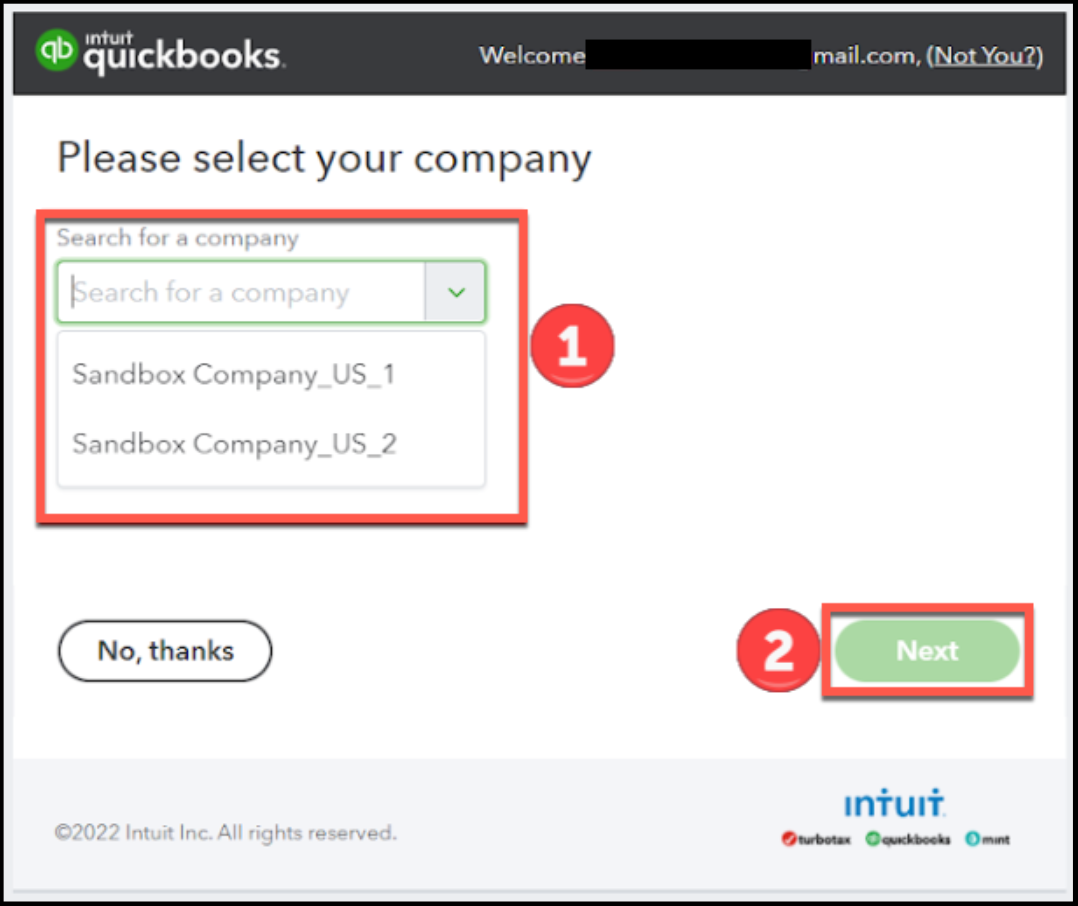
- Select the QuickBooks Online company account to sync with Projul.
- Use the dropdown to select a company.
- Click the Next button.
- Click the Connect button. After clicking Connect, you will automatically be returned to Projul.
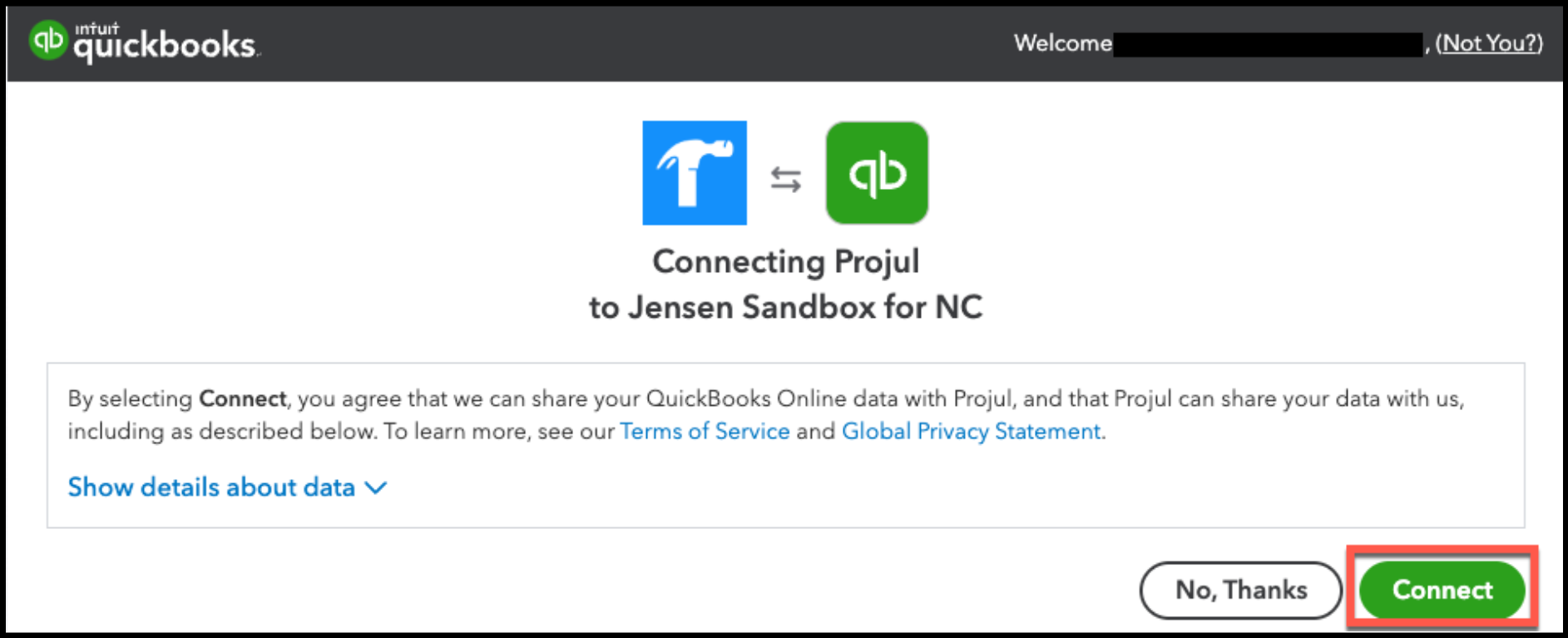
The QuickBooks Online company account has now been connected to Projul!
1.4 Disconnection
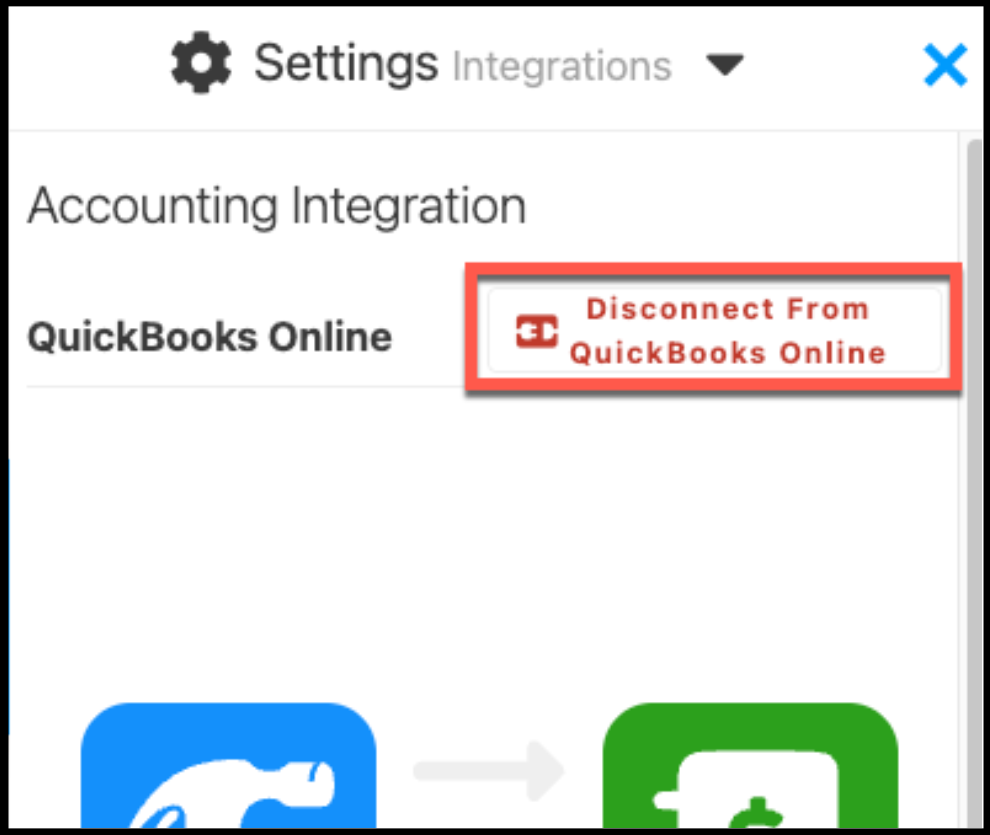
To disconnect Projul from QuickBooks, click the disconnect button in the Projul Integrations page.
2. Data Type Sync Selections
For QuickBooks Online, two-way data syncing is possible. Syncing options include:
- Data from Projul to QuickBooks Online.
- Automatic Syncing
- Manual Syncing
- Data from QuickBooks Online to Projul.
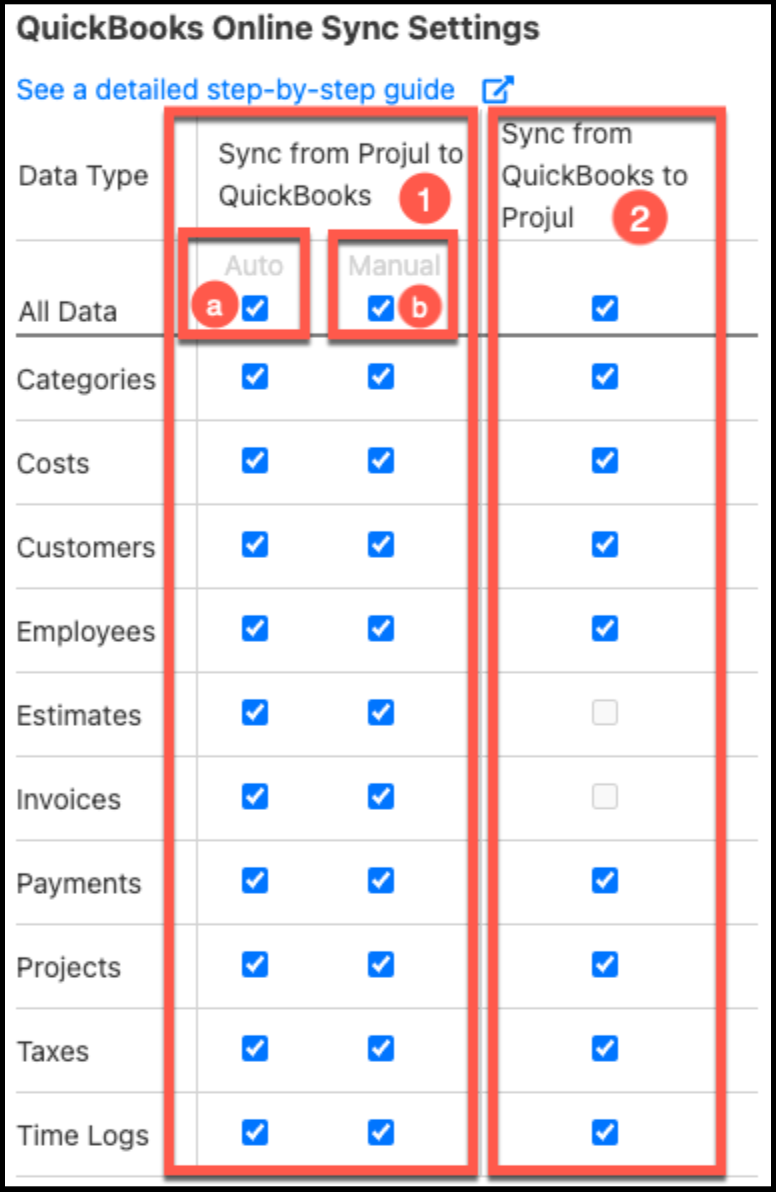
The following data types may be synced between Projul and QuickBooks Online.
- Categories
- Costs
- Customers
- Employees
- Estimates
- Invoices
- Payments
- Projects
- Taxes
- Time Logs
Only data types selected/checked in the Integrations page of Projul will be synced.
2.1 Syncing Selections for Projul to QuickBooks Online
There are two types of syncing from Projul to QuickBooks Online: automatic and manual.
2.1.1 Automatic Syncing
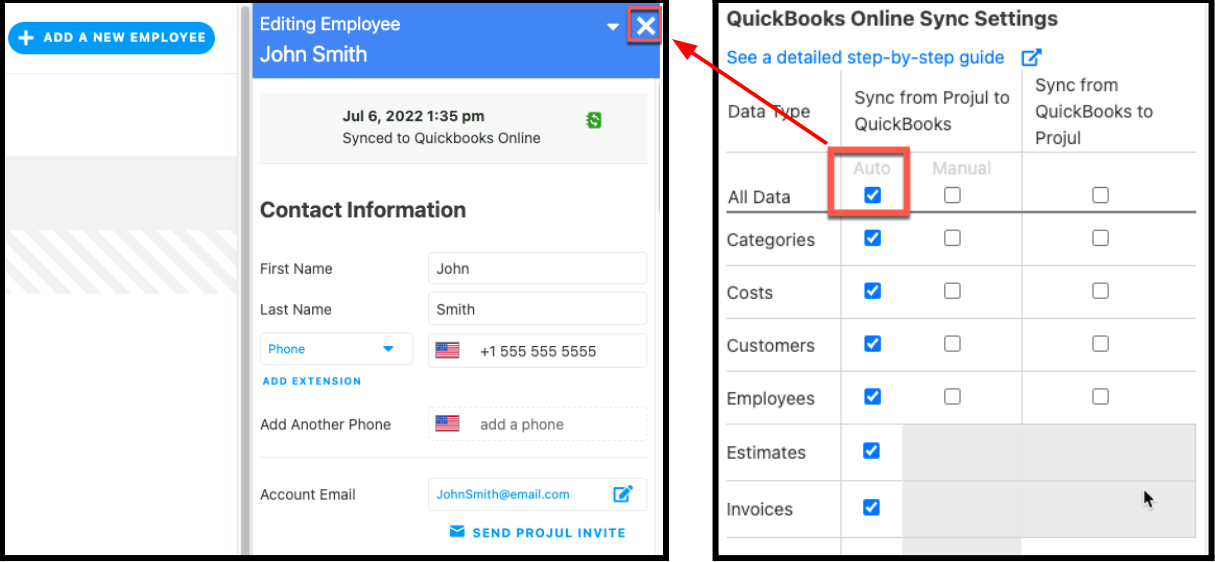
When data is entered or edited, Projul will automatically sync that data to QuickBooks. The sync is initiated when the editor containing that data is closed.
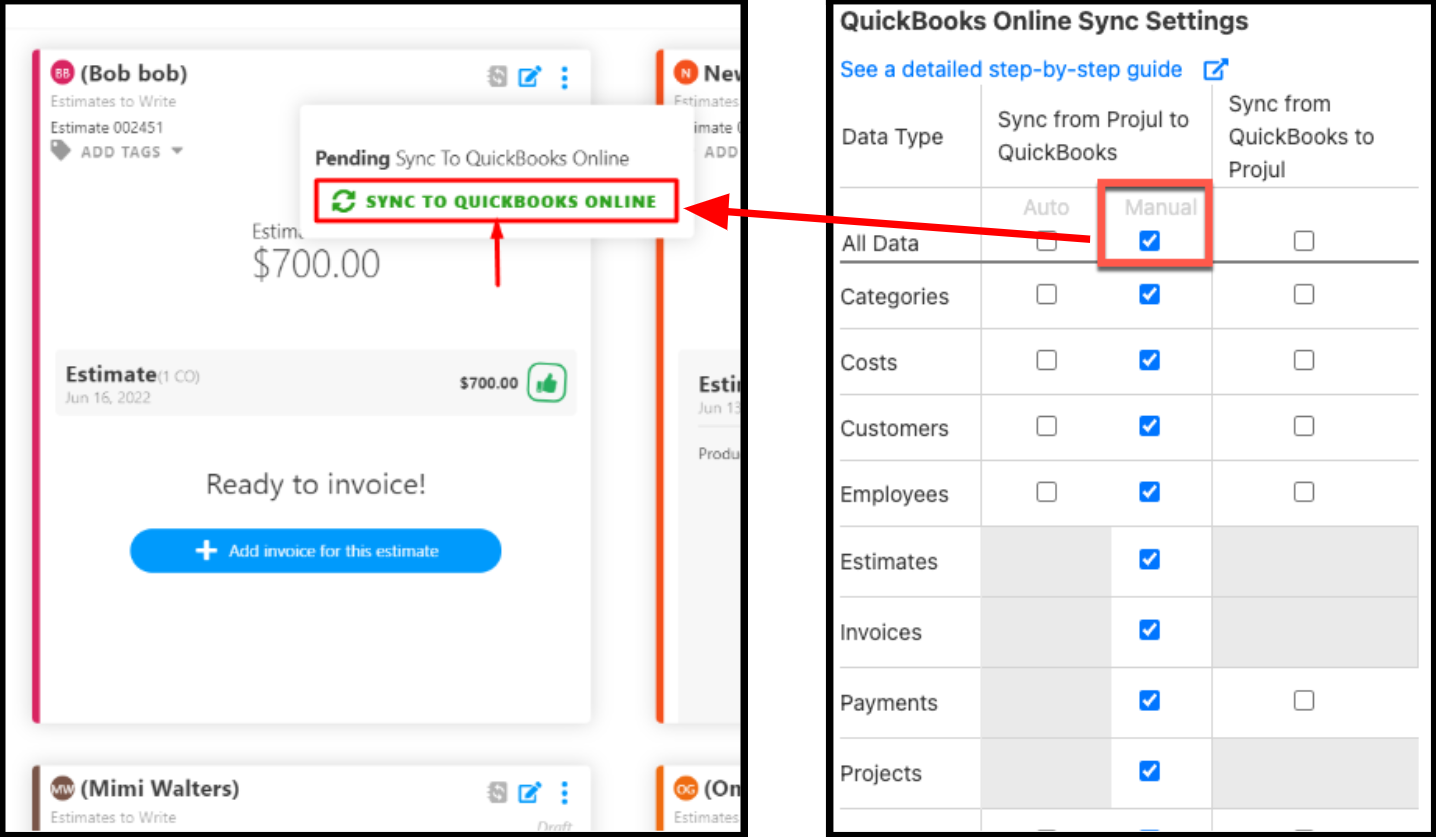
2.1.2 Manual Syncing
To sync data manually from Projul to QuickBooks Online, click the "Sync to QuickBooks Online" button found at the top of that data’s card, sidebar, or editor.
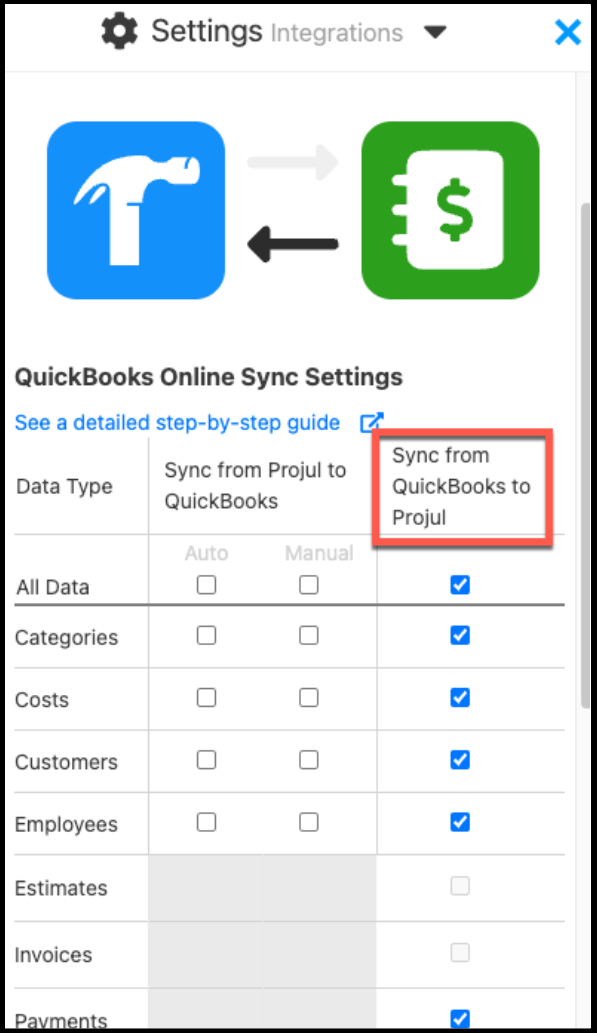
2.2 Syncing Selections for QuickBooks Online to Projul
All data synced from QuickBooks Online to Projul is done automatically when new data is entered.
- Note: Except for tax data, previously existing data in QuickBooks Online cannot be synced to Projul.
2.3 Sync Icons
Projul has four sync statuses represented by the following icons.

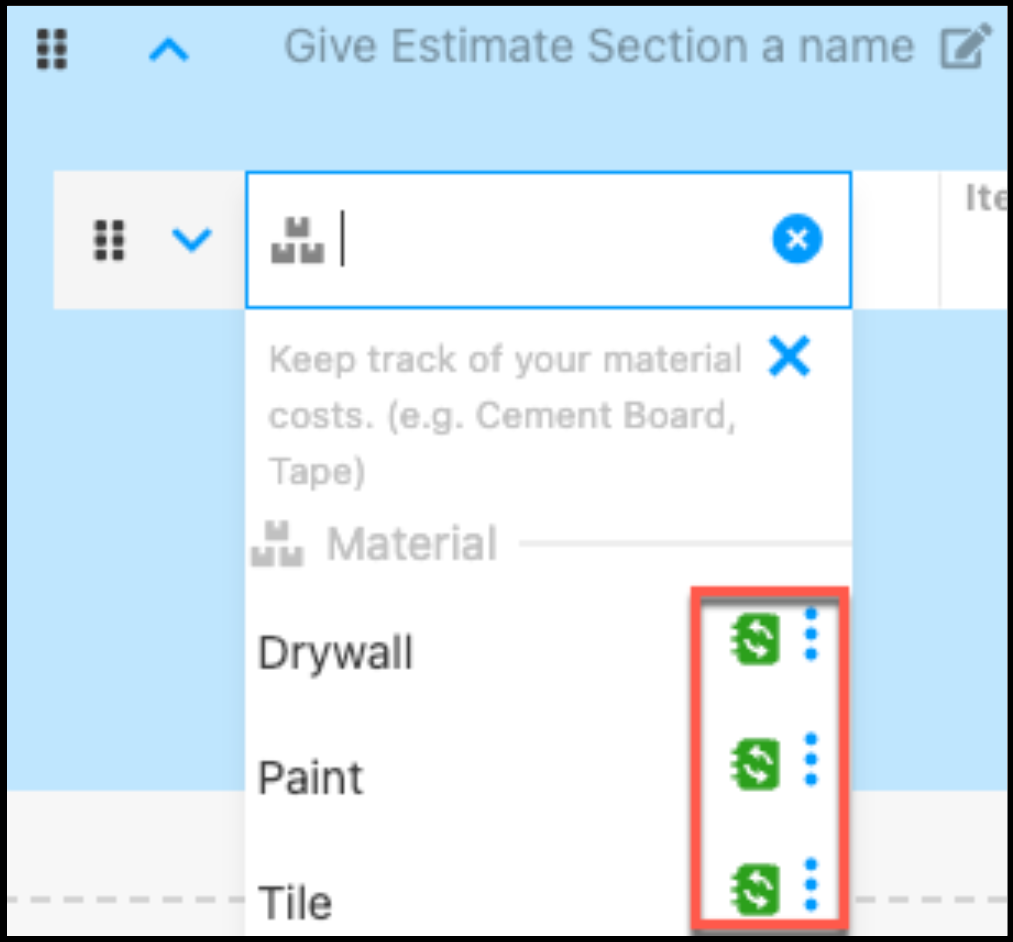
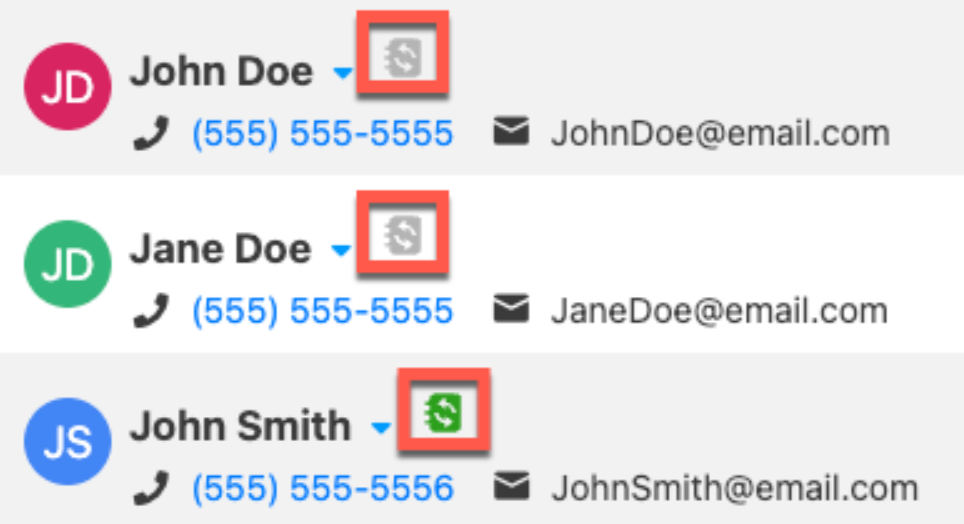
Data types selected to be synced on the Integration page, as noted in the previous section, will display one of these icons next to the data as illustrated in the examples below.
- Note: Once the system finishes syncing, the webpage may need to be refreshed to see the changes.
Examples:
Screenshot example of the sync icon (data synced) for the cost line item data.
Screenshot example of the sync icon (pending data sync and data synced) for customer data.
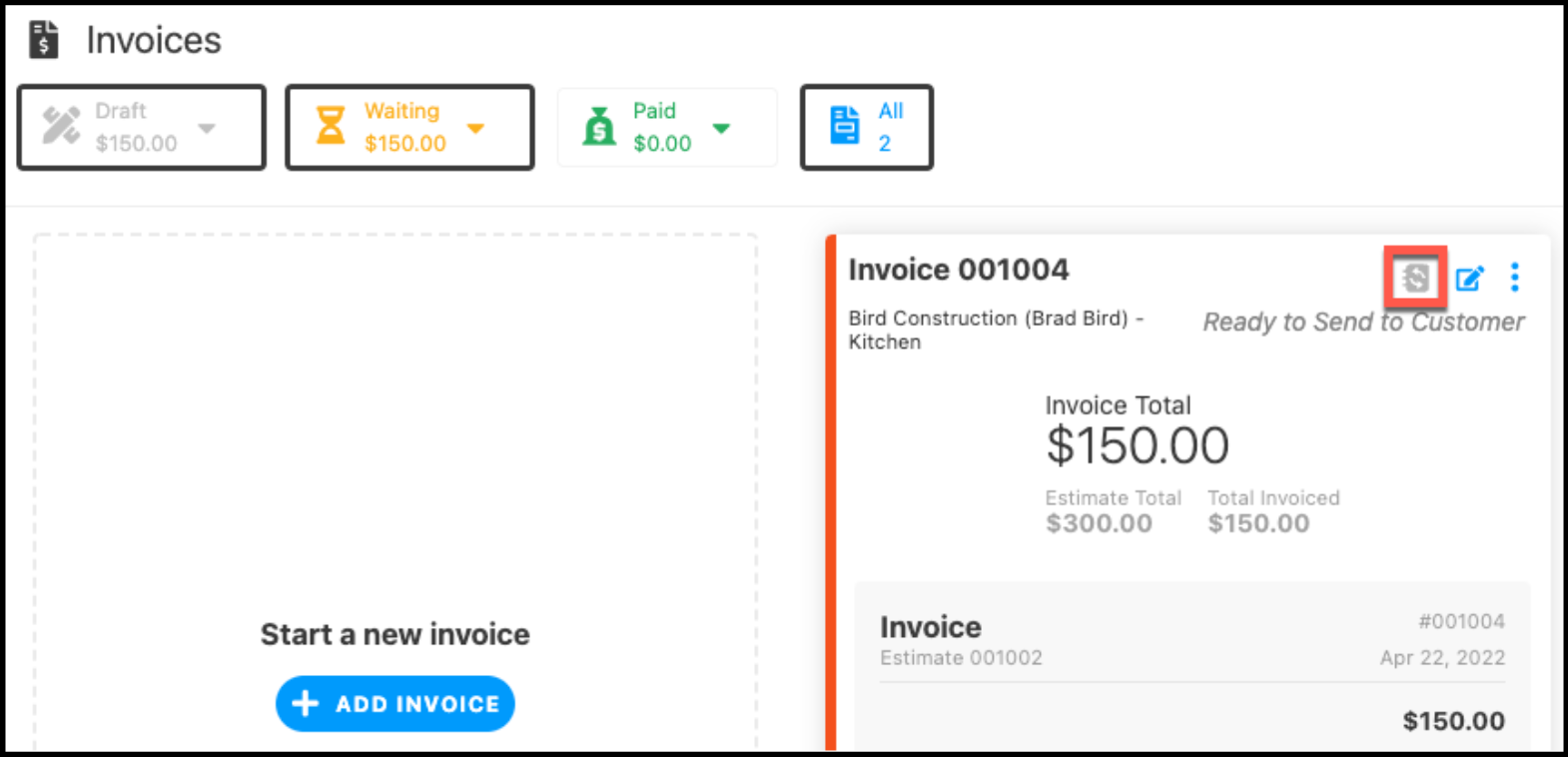
Screenshot example of the sync icon (pending sync) for the invoice data.
2.4 Pending Sync Items
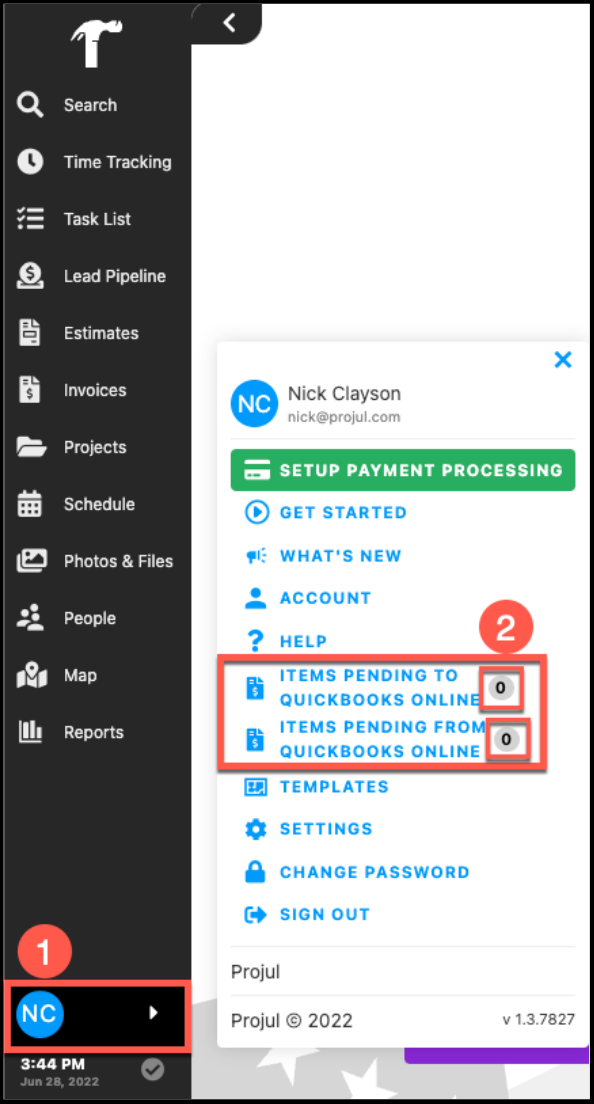
After establishing the integration between Projul and QuickBooks Online, the account / initials menu will display pending items to be synced. To check if there is data to waiting to be synced:
- Click on account / initials.
- View the “Items Pending…” lines on the account / initials menu.
2.5 Additional Sync Options
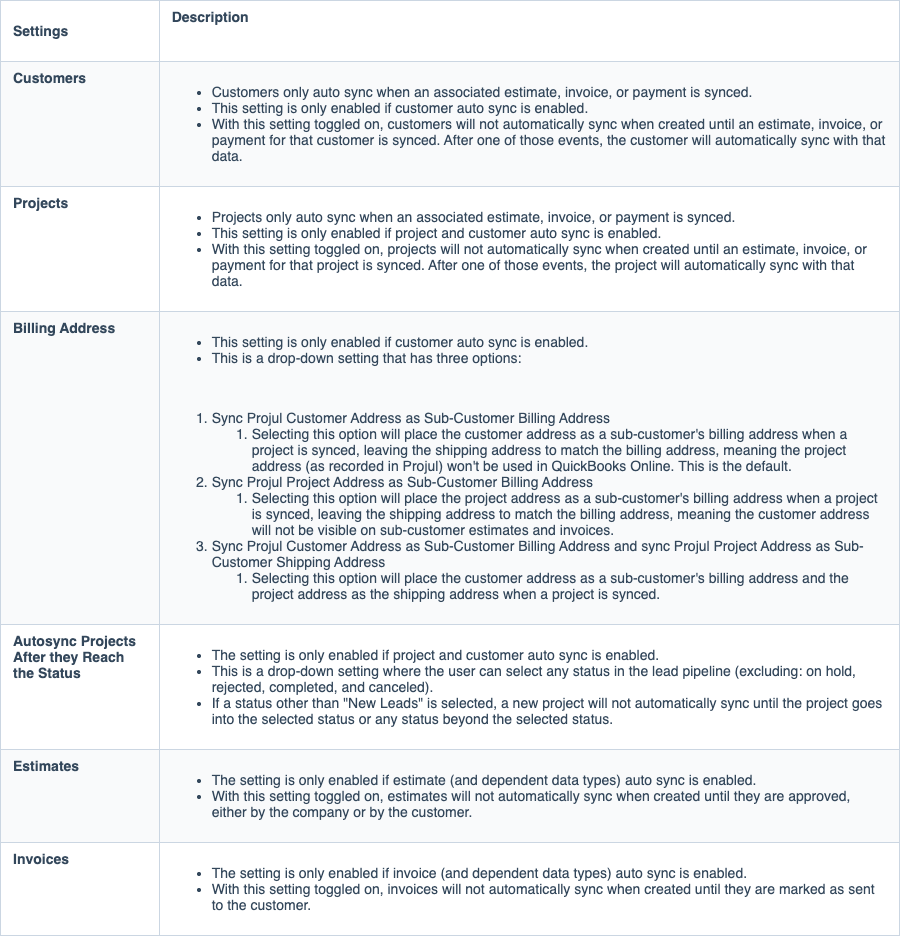
There are several sync options available to consider beyond which data should be synced, including:
- Sync all QuickBooks Taxes to Projul.
- Auto sync customers only when an associated estimate, invoice, or payment is synced.
- Auto sync projects only when an associated estimate, invoice, or payment is synced.
- Billing address sync options include:
- Sync the Projul customer address as a sub-customer billing address in QuickBooks.
- Sync the Projul project address as a sub-customer billing address in QuickBooks.
- Sync the Projul customer address as a sub-customer billing address in QuickBooks
AND
Sync the Projul project address as a sub-customer billing address in QuickBooks.
- Auto sync projects only after they reach selected status in Projul (i.e. New Leads, To Contact, To Schedule, To Estimate, To Write, To Send, To Sell, or Sold).
- Auto sync estimates only after they are approved.
- Auto sync invoices only after they are sent to the customer.

Details on the additional sync options are provided in the chart below.
3. Sync Details by Data Type
The rest of this document will provide sync details for each of the data types in the list below. As stated previously, data syncing is two-way. The chart below shows the data types that may be synced.

3.1 People
Projul offers three types of people roles that correspond to the QuickBooks customer. Two of the three may be synced between Projul and QuickBooks Online.
- Customers
- Employees
- Contractors (not synced)
Customers are generally added while creating a new project OR separately on the People page.
3.1.1 Customers
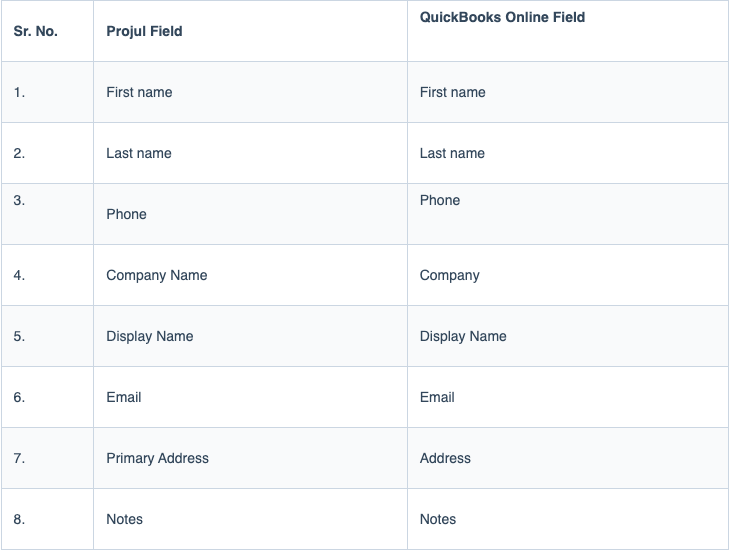
Projul customer data syncs to QuickBooks Online fields as follows.
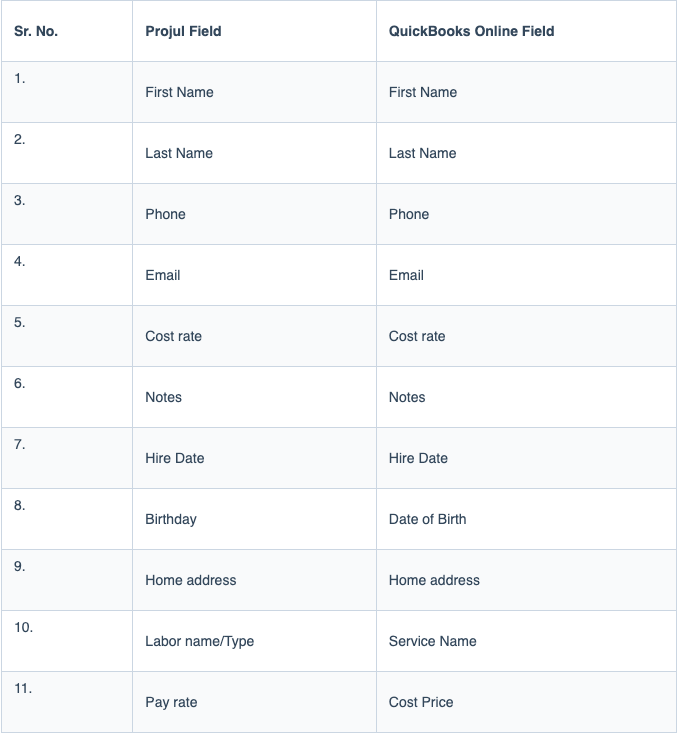
3.1.2 Employees
Projul employee data syncs to QuickBooks Online fields as follows.
Example:
The following link details how to add a new employee.
Click here to learn about adding employees or contractors
3.2 Projects
While Projul is designed to be project-centric, every project requires a customer. As such, project sync is dependent on the customer data syncing. If the customer data is not synced, project syncing will not work.
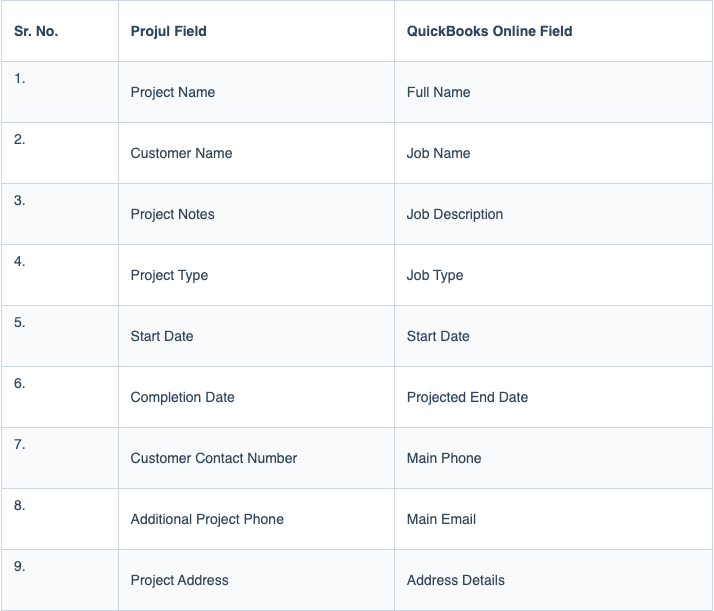
Projul project data syncs to QuickBooks Online fields as follows.
Example:
The following link details how to create a new project.
Click here to learn about creating new project leads
3.3 Time Logs
Time log sync is dependent on the employee data syncing. If the employee data is not synced, time log syncing will not work.
- Note: Pay rate syncing works for new pay rates only.
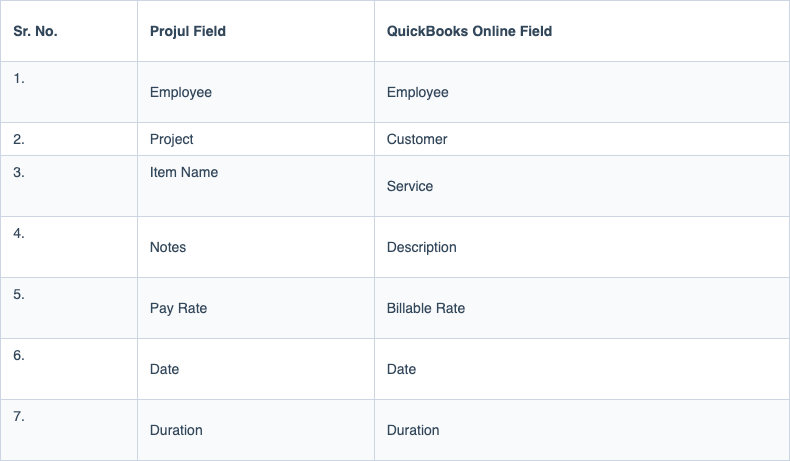
For time log data, Projul fields sync to QuickBooks Online fields as follows.
Example:
The following links detail how to enter time, approve a time log and manage pay rates.
Click here to learn about adding or editing time logs
Click here to learn about pay rates
3.4 Categories
There are three types of categories in Projul, and all will sync from Projul to QuickBooks Online.
- Labor
- Materials
- Other Costs
Example:
The following link details how to create an estimate with costs at the category level.
Click here to learn about adding, editing, or removing cost line templates
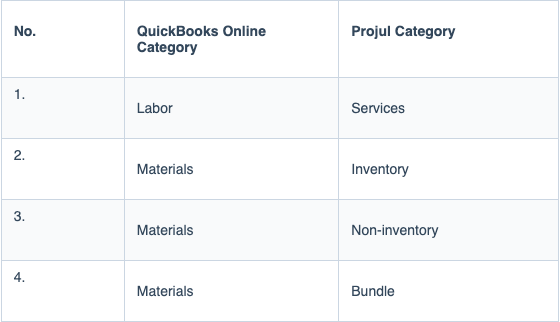
QuickBooks Online has four categories, which map to Projul as follows.
3.5 Costs
In Projul, the three categories above may be broken out into various cost line items. For example, materials could include drywall, paint, or steel.
The different cost categories have varying mandatory fields that must be completed in order for syncing to occur.
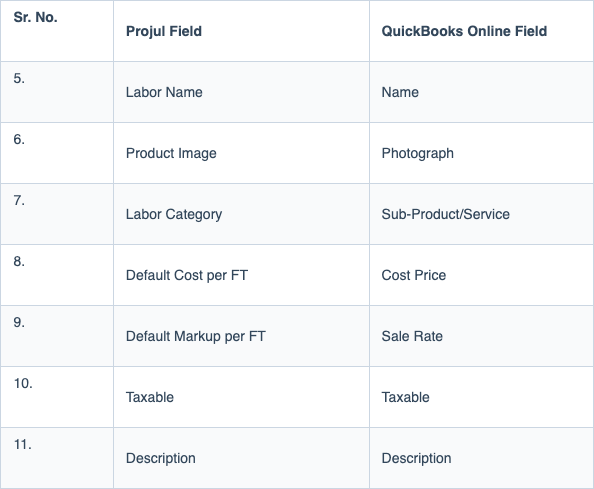
3.5.1 Labor Costs
Projul labor costs sync to QuickBooks Online fields as follows.
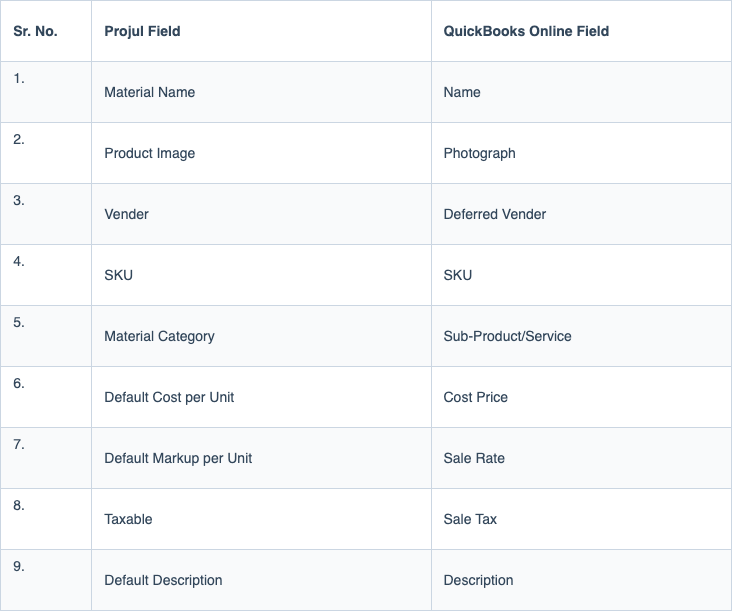
3.5.2 Material Costs
Projul material costs sync to QuickBooks Online fields as follows.
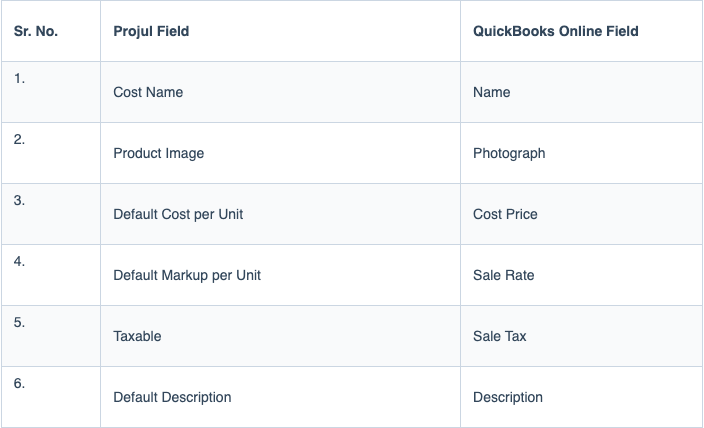
3.5.3 Other Costs
Projul other costs sync to QuickBooks Online fields as follows.
Example:
The following link details how to create an estimate with costs at the cost line item level, as well as how to Remember Labor / Material / Other Cost as Template which is required for cost line item syncing.
Click here to learn about cost line templates
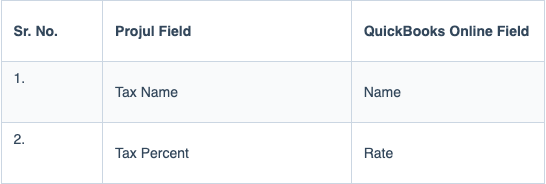
3.6 Taxes
Projul tax data syncs to QuickBooks Online fields as follows.
Example:
The following link details how tax rates work in Projul.
Click here to learn about tax rates
3.7 Estimates
Estimate sync is dependent on multiple other data types syncing. If the following data types are not synced, estimate syncing will not work.
- Categories
- Costs
- Customers
- Projects
- Taxes
Projul estimate data syncs to QuickBooks Online fields as follows.
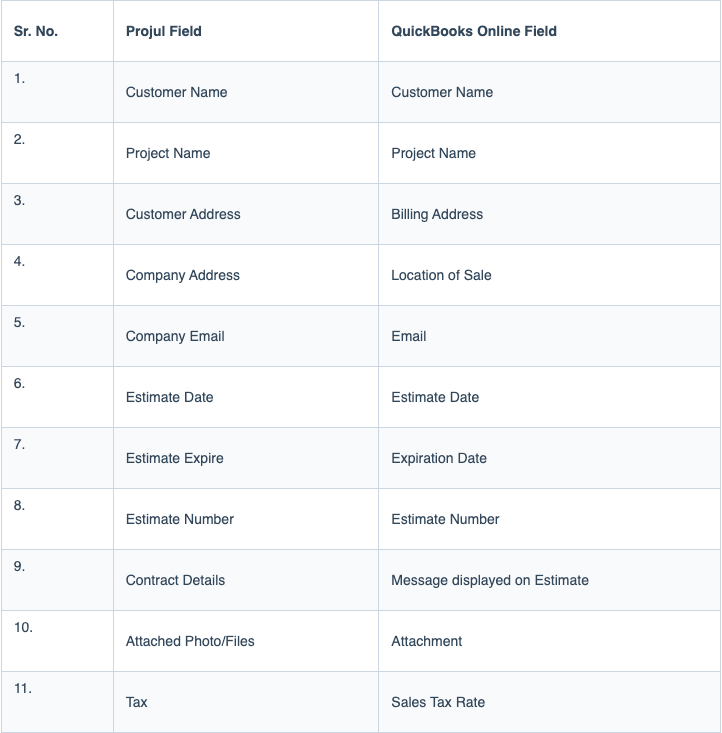
- Note: Estimates will always sync as itemized estimates to QuickBooks.
3.8 Invoices
Invoice sync is dependent on multiple other data types syncing. If the following data types are not synced, invoice syncing will not work.
- Categories
- Costs
- Customers
- Projects
- Taxes
- Estimates
Projul invoice data syncs to QuickBooks Online fields as follows.
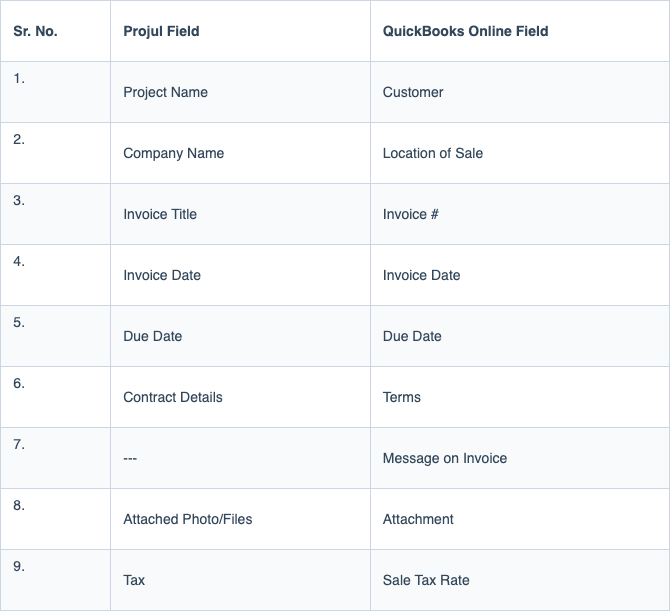
- Note: Invoices will always sync as itemized invoices to QuickBooks.
Example:
The following link details how to itemize an invoice.
Click here to learn about invoices
3.9 Payments
Payment sync is dependent on multiple other data types syncing. If the following data types are not synced, payment syncing will not work.
- Categories
- Costs
- Customers
- Projects
- Taxes
- Estimates
- Invoices
Projul payment data syncs to QuickBooks Online fields as follows.
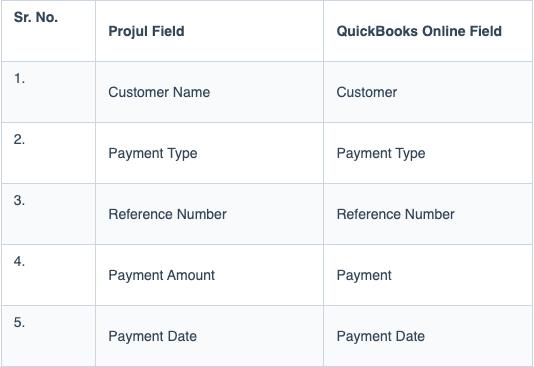
Example:
The following link details how to add a payment to an invoice.
Click here to learn about payments
4. QuickBooks Online Additional Information
The following link to the Intuit QuickBooks Online Support webpage provides information on how to create / update the various data types that sync to Projul.
Questions? Let's Chat.
support@projul.com
(844) 776-5853